Tesserax is designed to be a “thin layer” of geometric logic over SVG. Unlike plotting libraries that try to decide for you how axes and scales should work, Tesserax gives you a blank canvas and a set of precise drafting tools.
This guide covers the fundamental building blocks: the coordinate system, basic shapes, transformations, the anchor system, and the powerful Polyline API.
The Canvas and Coordinates
Every diagram begins with a Canvas. In Tesserax, the Canvas serves two roles:
Container: It collects all shapes created within its context.
Viewport: It manages the final SVG bounding box and coordinate mapping.
Mathematical Coordinate System
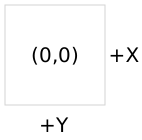
Tesserax follows the standard SVG Coordinate System:
The origin\((0, 0)\) is at the top-left corner (initially).
The X-axis points to the right (\(+x\)).
The Y-axis points down (\(+y\)).
This is crucial to remember when applying rotations. A positive rotation (counter-clockwise) moves the \(+x\) axis towards the \(+y\) axis (downwards on the screen).
Tesserax provides a suite of geometric atoms. All visual shapes inherit from the Visual class, which standardizes properties like fill, stroke, and width.
Rectangles and Circles
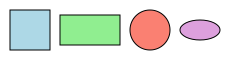
Rect(w, h): Defined by width and height. Centered at by default.
Square(size): A convenience wrapper for Rect.
Circle(r): Defined by radius. Centered at .
Ellipse(rx, ry): Defined by horizontal and vertical radii.
Code
from tesserax import Canvas, Rect, Square, Circle, Ellipsewith Canvas() as c:# Shapes are placed at (0,0) by default, so we translate them to separate them. Square(40, fill=Colors.LightBlue).translated(0, 0) Rect(60, 30, fill=Colors.LightGreen).translated(60, 0) Circle(20, fill=Colors.Salmon).translated(120, 0) Ellipse(20, 10, fill=Colors.Plum).translated(170, 0)c.fit(10).display()
Text and Alignment
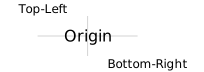
Text in SVG can be tricky due to alignment issues. Tesserax simplifies this by defaulting to center/middle alignment.
from tesserax import Text, Line, Pointwith Canvas() as c:# Draw a crosshair at the origin to show alignment Line(Point(0, -20), Point(0, 20), stroke=Colors.LightGray) Line(Point(-50, 0), Point(50, 0), stroke=Colors.LightGray)# Default Text (Centered) Text("Origin", size=16, fill=Colors.Black)# Custom alignment Text("Top-Left", anchor="end", baseline="bottom").translated(-20, -20) Text("Bottom-Right", anchor="start", baseline="top").translated(20, 20)c.fit(10).display()
The Transformation Model
Every shape in Tesserax carries a Transform object. This defines an Affine Transformation that maps the shape’s local coordinate space to the parent space.
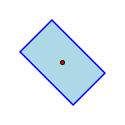
The operation order is strict: Scale - Rotate - Translate.
Scale: The object is stretched.
Rotate: The object is rotated around the (scaled) origin.
Translate: The object is moved to its final position.
Tesserax provides a fluent API to chain these operations:
Code
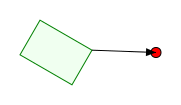
from tesserax import Canvas, Rect, degwith Canvas() as c:# 1. Create a rectangle at (0,0) r = Rect(50, 30, fill=Colors.LightBlue, stroke=Colors.Blue)# 2. Scale it by 1.5x# 3. Rotate it by 45 degrees# 4. Move it to (50, 50) r.scaled(1.5).rotated(deg(45)).translated(50, 50)# Show the origin for reference Circle(2, fill=Colors.Red).translated(50, 50)c.fit(20).display()
The Anchor System
One of Tesserax’s most powerful features is semantic anchoring. Because shapes are often nested inside Groups or transformed heavily, calculating the exact coordinate of “the top-right corner of that rotated rectangle” is mathematically tedious.
The .anchor(name) method solves this by resolving the local coordinate through the entire transformation stack.
Available anchors: center, top, bottom, left, right, topleft, topright, bottomleft, bottomright.
Code
from tesserax import Arrowwith Canvas() as c:# A generic shape obj = Rect(60, 40, fill=Colors.Honeydew, stroke=Colors.Green) obj.rotated(deg(30)).translated(50, 50)# A target point target = Circle(5, fill=Colors.Red).translated(150, 50)# Connect the top-right corner of the rotated rect to the target# We don't need to know where "top-right" is in global space,# .anchor() calculates it. Arrow(obj.anchor("topright"), target.anchor("center"))c.fit(20).display()
Paths and Lines
For arbitrary drawing, Tesserax offers both low-level and high-level path tools.
The Low-Level Path
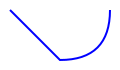
The Path class maps directly to SVG commands (M, L, C, Q, Z).
Code
from tesserax import Pathwith Canvas() as c: p = Path(fill=Colors.Transparent, stroke=Colors.Blue, width=2) p.jump_to(0, 0) p.line_to(50, 50) p.quadratic_to(100, 50, 100, 0) # Control point (100,50), End (100,0)c.fit(10).display()
Lines and Arrows
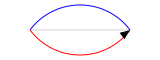
Line and Arrow are specialized paths that connect two points. They support a curvature parameter to create arcs without manually calculating Bezier control points.
Code
from tesserax import Linewith Canvas() as c: start, end = Point(0, 0), Point(100, 0) Line(start, end, curvature=0, stroke=Colors.LightGray) # Straight Line(start, end, curvature=0.5, stroke=Colors.Blue) # Arc Up Arrow(start, end, curvature=-0.5, stroke=Colors.Red) # Arc Downc.fit(30).display()
The Polyline API
The Polyline is a versatile tool for creating complex polygons, wireframes, and smooth curves. It maintains a list of Point objects and renders them sequentially.
Smoothing and Rounding
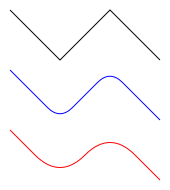
The smoothness parameter (\(0\) to \(1\)) automatically converts sharp vertices into rounded corners using quadratic Bezier interpolation.
The Polyline class includes powerful methods to procedurally generate and manipulate shapes.
Polyline.poly(n, radius): Creates a regular n-gon (triangle, hexagon, etc.).
.subdivide(n): Inserts midpoints between every segment, increasing resolution.
.simplify(tolerance): Removes points that are collinear or redundant.
.expand(delta): Pushes points away from the origin (inflation).
.apply(func): Maps a function over every point.
Code
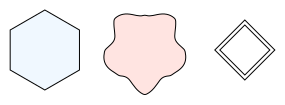
import mathwith Canvas() as c:# 1. Create a Hexagonhex= Polyline.poly(n=6, radius=40, fill=Colors.AliceBlue)hex.translated(50, 50)# 2. Create a "Wobbly" Circle# Start with a simple polygon, subdivide it to get many vertices,# then apply a noise function to the radius. blob = Polyline.poly(n=8, radius=40, fill=Colors.MistyRose, smoothness=1) blob.subdivide(3) # Increase vertex count 8 -> 16 -> 32 -> 64# Apply a wave function to distort itdef distort(p: Point) -> Point:# Get angle of point theta = math.atan2(p.y, p.x)# Vary radius based on angle wave = math.sin(theta *5) *5return p + p.normalize() * wave blob.apply(distort).simplify(0.1) blob.translated(150, 50)# 3. Contract/Expand# Useful for creating outlines or offsets base = Polyline.poly(4, 30, stroke=Colors.Black) inner = base.clone().contract(5) # Shrink base.translated(250, 50) inner.translated(250, 50)c.fit(10).display()
Sketchy Drawings
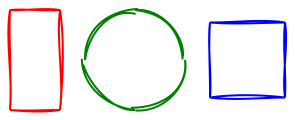
And since mathematical drawings are incomplete without an XKCD-style sketchy mode, Tesserax also provides a (still kinda ugly) implementation for sketches. You can use it just as a regular group, but everything drawn inside will be sketched (if possible).
Code
from tesserax.sketch import Sketchwith Canvas() as canvas:with Sketch() as g: r = Rect(50, 100, stroke=Colors.Red, width=2) c = Circle(50, stroke=Colors.Green, width=2) q = Square(75, stroke=Colors.Blue, width=2) g.distribute("horizontal", gap=25)canvas.fit(10).display()
Not all Tesserax primitives can be sketched. For this to work, we need to be able to compute Paths for a given shape, which is not possible for non-procedural shapes like Text and Sprite. Also, curved shapes like Arrow are not supported yet, but you can subsititute those with custom Polyline with end markers. Also, sketches currently don’t work with fill colors.