The following examples are a bit more involved and showcase the kind of drawings that can be done with Tesserax in the academic domain.
Sorting
Code
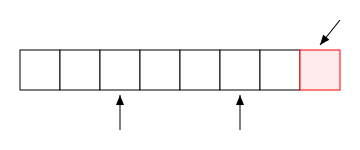
from tesserax import Canvas, Square, Arrow, Group, Shapefrom tesserax.layout import RowLayoutdef create_pointer(target_shape: Shape, label_offset=40):"""Helper to create a pointer arrow below a shape."""# We use the bottom anchor of the target shape base = target_shape.anchor("bottom")# Start the arrow lower down (dy) and point up to the shape tail = base.dy(label_offset) head = base.dy(5) # Stop 5px short of the shapereturn Arrow(tail, head)with Canvas() as canvas: elements: list[Shape] = []# 1. The Array (Memory Strip)# We use a Row layout to pack squares automaticallywith RowLayout(gap=0) as array:for i inrange(8):# Highlight the pivot (last element) with a different style is_pivot = (i ==7) s = Square( size=40, stroke="red"if is_pivot else"black", fill="#ffebeb"if is_pivot else"white" ) elements.append(s)# 2. The Pointers (i and j)# We access the specific elements after the layout has settled ptr_i = create_pointer(elements[2]) # Pointing to index 2 ptr_j = create_pointer(elements[5]) # Pointing to index 5# 3. Pivot Label (Curved arrow from top) pivot_shape = elements[-1] pivot_top = pivot_shape.anchor("top")# Create a visual indicator for the pivot pivot_arrow = Arrow( pivot_top.d(20, -30), # Top-right offset pivot_top.dy(-5) )canvas.fit(padding=20).display()
Automaton
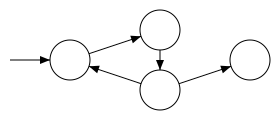
This example uses a force layout to draw a simple graph that represents an automaton.
Code
import mathfrom tesserax import Canvas, Circle, Arrowfrom tesserax.layout import HierarchicalLayoutfrom tesserax.core import Pointdef get_boundary_point(center: Point, target: Point, radius: float) -> Point:"""Calculates a point on the circle's boundary facing the target.""" dx = target.x - center.x dy = target.y - center.y dist = math.sqrt(dx*dx + dy*dy)if dist ==0: return center# Normalize and scale by radiusreturn Point( center.x + (dx / dist) * radius, center.y + (dy / dist) * radius )with Canvas() as canvas: states: list[Shape] = [] radius =20# 1. Define the Graph Structurewith HierarchicalLayout(orientation="horizontal") as graph:# Create 5 statesfor i inrange(4): states.append(Circle(r=radius))# Connect them (Topology)# q0 -> q1 -> q2 graph.connect(states[0], states[1]) graph.connect(states[0], states[2])# q2 -> q0 (cycle) graph.connect(states[2], states[0])# q2 -> q3 -> q4 graph.connect(states[2], states[3])# Set the root graph.root(states[0])# 2. Draw Transitions (Visuals)# We define edges manually to ensure directionality (ForceLayout is undirected) transitions = [(0, 1), (1, 2), (2, 0), (2, 3)]for i, j in transitions: src = states[i].anchor("center") dst = states[j].anchor("center")# Calculate points on the boundary of the circles p1 = get_boundary_point(src, dst, radius) p2 = get_boundary_point(dst, src, radius) Arrow(p1, p2)# 3. Add a "Start" arrow pointing to q0 start_node = states[0].anchor("center") start_entry = get_boundary_point(start_node, start_node.dx(-100), radius) Arrow(start_entry.dx(-40), start_entry)canvas.fit(padding=10).display()
Stack
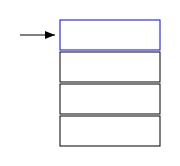
A simple illustration of a call stack.
Code
# examples/stack.pyfrom tesserax import Canvas, Rect, Arrow, Groupfrom tesserax.layout import ColumnLayoutwith Canvas() as canvas:with ColumnLayout(align="middle", gap=2) as stack:# Stack framesfor i inrange(4):# Top frame is active (different color) stroke ="blue"if i ==0else"black" Rect(100, 30, stroke=stroke)# Add a "Stack Pointer" top_frame = stack.shapes[0] sp_arrow = Arrow( top_frame.anchor("left").dx(-40), top_frame.anchor("left").dx(-5) )canvas.fit(padding=20).display()
Neural Networks
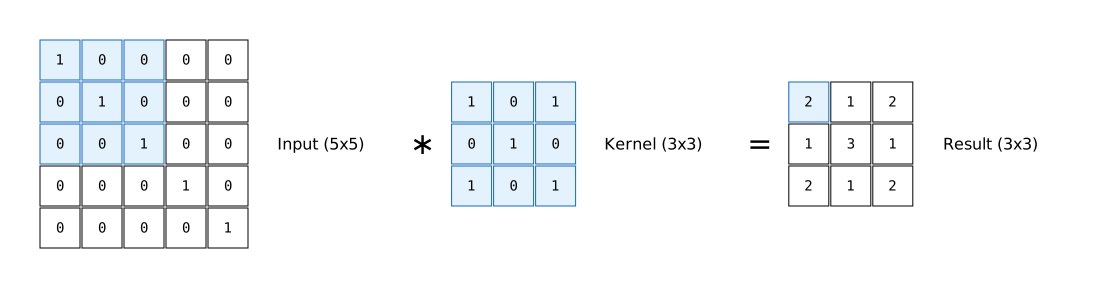
The following is a more complicated example showing how to visualize typical neural network operations like a convolution.
Code
from tesserax import Canvas, Square, Text, Arrow, Group, Shapefrom tesserax.layout import GridLayout, RowLayoutdef create_matrix(rows, cols, text, data=None, highlight_region=None, cell_size=40):""" Creates a grid of squares with optional text and highlighting. """with GridLayout(cols=cols, gap=2) as grid:for r inrange(rows):for c inrange(cols): val = data[r][c] if data else0# Determine styling based on the highlighted region is_active =Falseif highlight_region: r_start, c_start, r_end, c_end = highlight_regionif r_start <= r <= r_end and c_start <= c <= c_end: is_active =True# Visuals color ="#e3f2fd"if is_active else"white" stroke ="#1565c0"if is_active else"black"# A Group holding the box and the numberwith Group() as cell: box = Square(cell_size, fill=color, stroke=stroke) label = Text(str(val), size=14, font="monospace") cell.align() t = Text(text, size=16, anchor="middle") t.align_to(grid, anchor="bottom", other_anchor="top").translated(0, -10)# Return the group with these two elementsreturn grid + twith Canvas() as canvas:# Data Setup (Dummy Values) input_data = [[1if i == j else0for j inrange(5)] for i inrange(5)] kernel_data = [[1, 0, 1], [0, 1, 0], [1, 0, 1]] output_data = [[2, 1, 2], [1, 3, 1], [2, 1, 2]]# We put three matrices in a row with the corresponding texts in betweenwith RowLayout(gap=20): input_grid = create_matrix(5, 5, "Input (5x5)", input_data, highlight_region=(0, 0, 2, 2) ) math_op = Text("∗", size=30) kernel_grid = create_matrix(3, 3, "Kernel (3x3)", kernel_data, highlight_region=(0, 0, 2, 2) ) math_eq = Text("=", size=30) output_grid = create_matrix(3, 3, "Result (3x3)", output_data, highlight_region=(0, 0, 0, 0) )canvas.fit(padding=40).display()
The Physics Blob
This example demonstrates how to create a custom Composite Shape. We build a ConvexHull component that wraps a set of physics bodies. By connecting the bodies with springs and wrapping them in a smooth hull, we create a soft-body “Jelly” simulation.
First, we implement the geometry logic. This component takes a list of shapes, collects their vertices, and uses the Graham Scan algorithm to compute the convex hull.
Code
import mathfrom functools importreducefrom tesserax import Group, Polyline, Point, Colorsclass ConvexHull(Group):def__init__(self, shapes=None, fill=Colors.Transparent, stroke=Colors.Black, **kwargs):super().__init__(shapes)# The visual representation of the hullself.hull = Polyline([], closed=True, fill=fill, stroke=stroke, **kwargs)def _graham_scan(self, points: list[Point]) ->list[Point]:"""Computes the Convex Hull of a set of points."""iflen(points) <3: return points# 1. Find the bottom-most point (and left-most if ties) p0 =min(points, key=lambda p: (p.y, p.x))# 2. Sort by polar angle with respect to p0def polar_angle(p):return math.atan2(p.y - p0.y, p.x - p0.x)# Sort by angle, then distance sorted_points =sorted(points, key=lambda p: (polar_angle(p), p.distance(p0)))# 3. Build the hull stack = []for p in sorted_points:whilelen(stack) >1:# Cross product to check for left turn a = stack[-2] b = stack[-1] c = p cross = (b.x - a.x) * (c.y - a.y) - (b.y - a.y) * (c.x - a.x)if cross <=0: # Non-left turn stack.pop()else:break stack.append(p)return stackdef _render(self) ->str:# 1. Collect all "corners" from child shapes# For better blobs, we could sample points from circles, but bounds corners works for high N cloud = []for s inself.shapes: b = s.bounds() cloud.extend([ Point(b.x, b.y), Point(b.x + b.width, b.y), Point(b.x + b.width, b.y + b.height), Point(b.x, b.y + b.height) ])# 2. Compute Hullif cloud:self.hull.points =self._graham_scan(cloud)# 3. Render the Hull instead of the children# (We assume the children are invisible physics particles)returnself.hull.render()
Now we simulate the “Jelly.” We create a central particle connected to a ring of outer particles using springs.
Code
import randomfrom tesserax import Canvas, Circle, Rectfrom tesserax.physics import World, Body, Gravity, CircleCollider, Materialfrom tesserax.physics.constraints import Springfrom tesserax.animation import Scenecanvas = Canvas()world = World()# Parameterscenter_x, center_y =300, 100radius =60num_points =30# 1. Create Particlesparticles = []# Center particlecenter_shape = Circle(20).translated(center_x, center_y)center_body = world.add( center_shape, mass=1.0, collider=CircleCollider(20), material=Material(restitution=0.8),)# Ring particlesfor i inrange(num_points): angle = (2* math.pi * i) / num_points px = center_x + math.cos(angle) * radius py = center_y + math.sin(angle) * radius# Tiny circle particles (invisible inside the blob) s = Circle(10).translated(px, py) b = world.add( s, mass=0.5, collider=CircleCollider(10), material=Material(restitution=0.8) ) particles.append(b)# Connect to center (Spokes)# Stiffness 0.5 makes it wobbly world.constraint(Spring(center_body, b, length=radius, k=100))# Connect ring neighbors (Perimeter)for i inrange(num_points): b1 = particles[i] b2 = particles[(i +1) % num_points] dist =2* radius * math.sin(math.pi / num_points) world.constraint(Spring(b1, b2, length=dist, k=100))# 2. Wrap in the Hull# smoothness=0.5 makes the polyline rounded (Catmull-Rom splines)blob_shapes = [p.shape for p in particles]blob = ConvexHull( blob_shapes, fill=Colors.Teal, stroke=Colors.Black, width=2, smoothness=1, # Essential for the "organic" look)canvas.add(blob)# Add a floorfloor = Rect(600, 20, fill=Colors.Black).translated(300, 380)world.add(floor, static=True, material=Material(restitution=0.8))canvas.add(floor)# 3. Simulate# 5 seconds of dropping and bouncingworld.fields.append(Gravity())anim = world.simulate(duration=5.0)# Camera fittingscene = Scene(canvas)scene.canvas.fit(bounds=anim.bounds, padding=10)scene.play(anim, duration=10)scene.display()